1
Add a marketplace
Open Settings → Plugins. Select Add → Add a marketplace.
PluginsAppsMCPsMarketplace
Your plugin marketplaces
 TaskChef
TaskChef brings all your Codex chats into one dashboard.
Built for people who use Codex every day, with several projects and chats running in parallel.
Install TaskChef in Codex desktop. Choose either method below.
Codex uses npm to download the TaskChef plugin package. Its server dependencies are included. TaskChef then runs its local server with Node.js. Supported versions are Node.js 22.18+ in the 22 series, or 23.2 and newer. For a new installation, install Node.js 24 (recommended) and restart Codex.
Open Settings → Plugins. Select Add → Add a marketplace.
Use the values below, leave Sparse paths empty, then select Add marketplace.
Add from a GitHub repo, Git URL, or local folder.
Open Plugins → Personal. Find TaskChef under TaskChef, open it, and select Install.
Connect plugins to let Codex work across your tools
See your Codex chats, usage, and pull requests.
If you have the Codex CLI, you can use these commands instead of the manual steps:
codex plugin marketplace add favoyang/taskchef
codex plugin add taskchef@taskchefRestart Codex after installation. Then open TaskChef from the sidebar.
Connect GitHub to show live PR and CI status and move reviewed work to Done when its PRs are merged.
Sign in, manage repository access, or disconnect this computer.
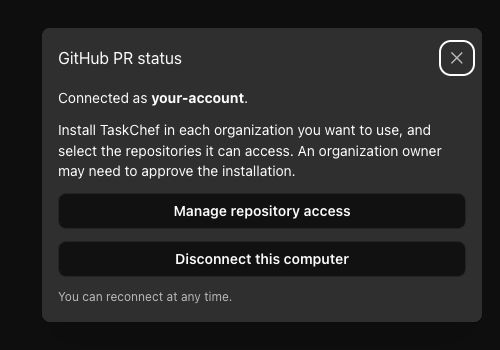
Grant TaskChef access in each GitHub organization you use. Select each organization, install or configure TaskChef, and confirm access to its repositories. Access granted in one organization does not cover the others. GitHub access is optional, but highly recommended.
Select … below the Plugins button in Codex’s left dock. Find the installed TaskChef entry and select it to open the board. Select the pin icon beside TaskChef to keep its grey chef icon in the sidebar dock.
 TaskChef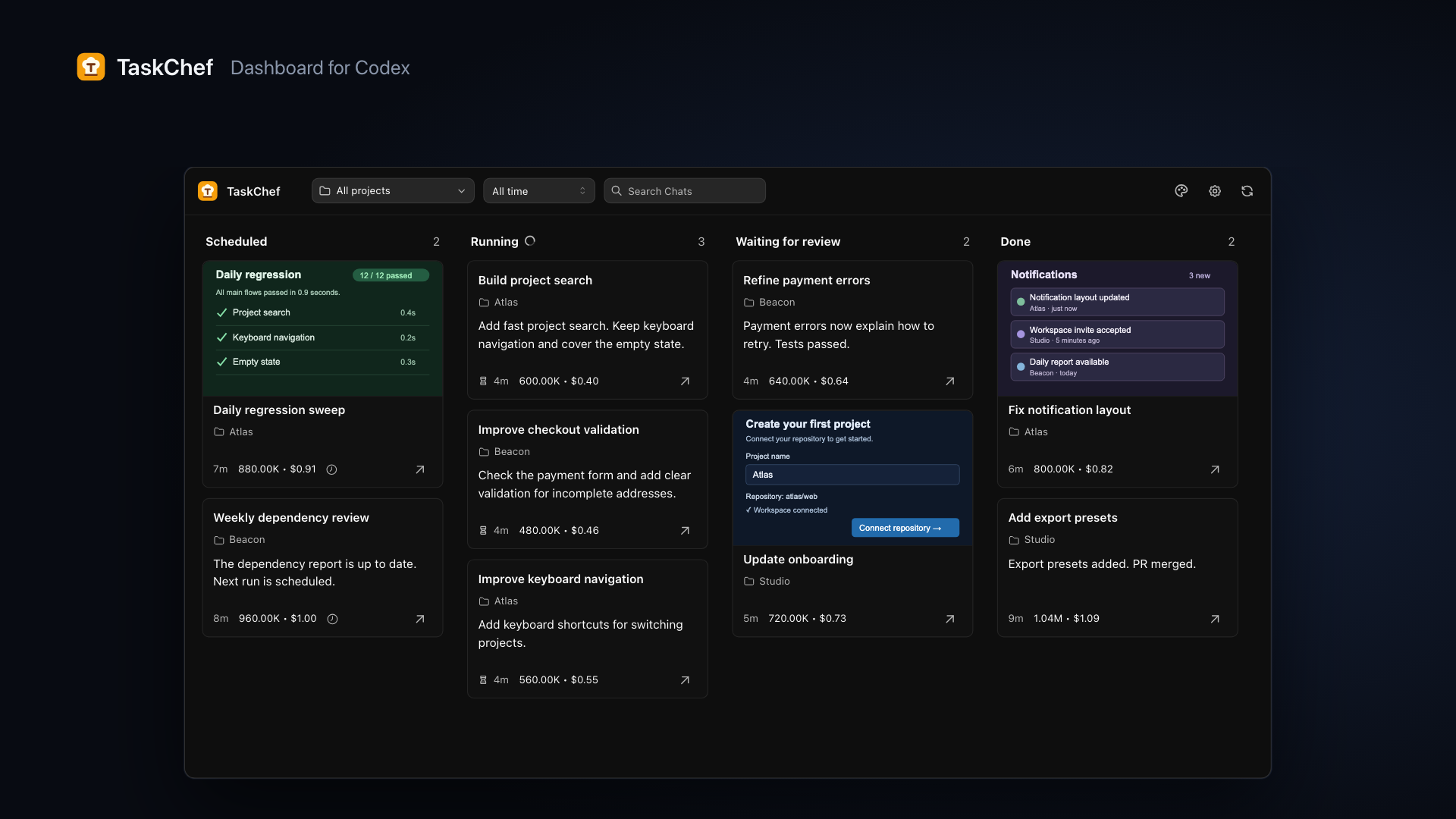
The board follows the latest turn of each chat. It updates automatically while open.
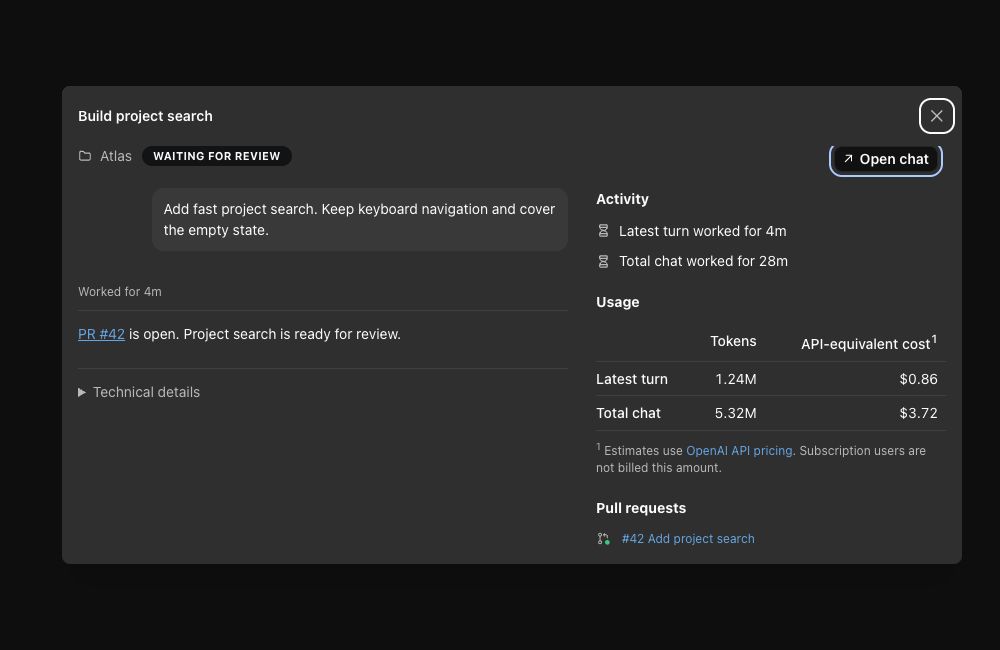
Use the project picker to focus on one project. Open a card to read its request, result, queued prompts, and turn or total-chat usage.
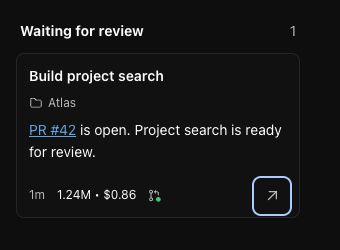
Select the ↗ Open chat arrow on a card, or Open chat in its detail popup. Answer questions and continue the work in Codex.
Use the floating composer at the bottom right of the dashboard. Enter a request and send it to start a new Codex chat while keeping the board in view.
Keep a master chat and use $taskchef:delegate to send work to a new chat in the right project. You can stay in that master chat and delegate jobs, like a chef sending work to the team, without selecting a project each time.
$taskchef:delegate Investigate the failing tests in Atlas.The skill can remember project aliases and routing preferences you confirm. Over time, those hints help it route bug links and familiar keywords with less input from you. If the project is unclear, it asks before starting the new chat.
Use it if it fits your workflow. The dashboard works without it.
Found a bug? Report a bug. Have an idea? Request a feature. Describe what happened or the workflow you would like to improve. For a bug, include your TaskChef version and the steps to reproduce it.
For installation, GitHub access, usage estimates, and board status, read the FAQ.